
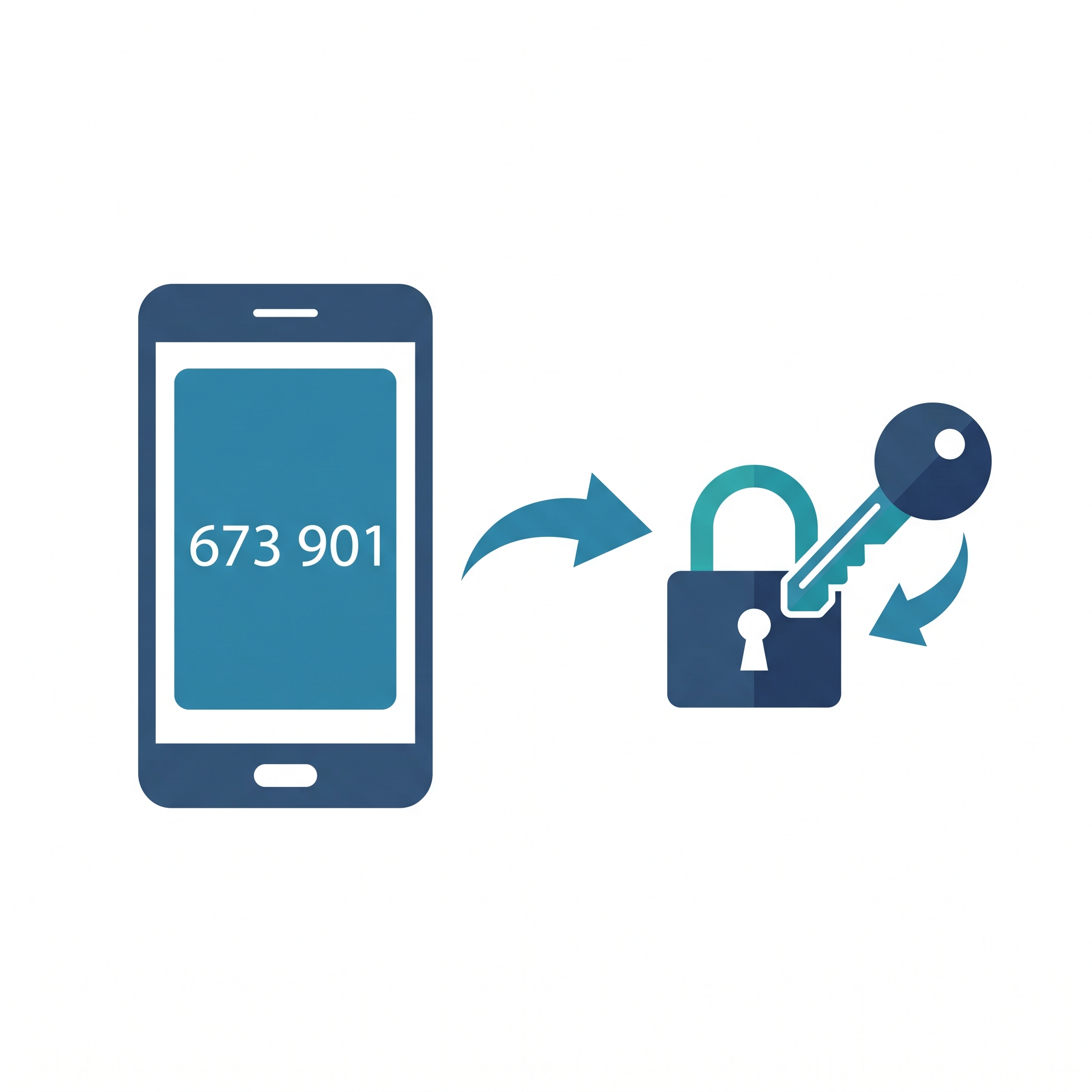
You’ve probably run into two-factor authentication already, even if nobody ever explained the term — that moment when you log in, enter your password, and then get asked for a code texted to your phone. That extra step is one of the single most effective things you can do to protect your accounts, and it costs you maybe ten extra seconds.
What “Two-Factor” Actually Means
Two-factor authentication (2FA for short) requires two different kinds of proof before letting you in, not just one. Security folks generally sort proof into three buckets:
- Something you know — a password or PIN
- Something you have — a phone, a security key, an authenticator app
- Something you are — a fingerprint or face scan
A password alone is “something you know” — a single factor. Two-factor adds a second category, usually “something you have,” so even if someone steals or guesses your password, they still can’t get in without your phone or authentication device too.
Why This Matters So Much
Passwords get compromised way more often than most people assume — data breaches at companies you never even dealt with directly, phishing emails, or just weak passwords reused everywhere getting guessed. Once one’s stolen, it often gets tried across a bunch of different sites, since so many people reuse the same password over and over.
Two-factor authentication catches exactly this scenario. Even with your password in hand, a scammer hits a wall at step two — unless they also physically have your phone, which is a much bigger ask for someone operating remotely.
Common Types of Two-Factor Authentication
Text message (SMS) codes. A code lands via text after you enter your password. Most common, easiest to set up, though slightly less secure than other options since texts can, rarely, be intercepted.
Authenticator apps. Google Authenticator, Microsoft Authenticator, that kind of thing — generates a fresh code every 30 seconds on your phone, no text message or internet connection needed. Generally considered more secure than SMS.
Push notifications. Instead of typing a code, a notification pops up asking “Was this you?” and you just tap yes or no.
Physical security keys. A small USB-style device you plug in or tap. Most secure option, but not something most everyday users bother with.
Where to Turn This On First
Only have time for a few accounts? Start here, since these are the ones most valuable to a scammer and most likely to unlock everything else:
- Email — often the key to resetting passwords everywhere else, making it the single most important account to lock down
- Banking and financial accounts
- Social media — a common target for scams targeting your friends and family
- Anything with saved payment info
How to Turn It On
Steps vary a bit by service, but the general path usually looks like:
- Go into the account’s Settings or Security section
- Look for “Two-Factor Authentication,” “2-Step Verification,” or “Login Security”
- Pick your method (text message’s the simplest to start with)
- Follow the prompts to verify your phone or set up an authenticator app
- Save any backup codes offered — these get you back in if you ever lose your phone
The Bottom Line
Two-factor authentication adds one small step to logging in, but it closes one of the biggest gaps scammers rely on — a stolen or guessed password alone just isn’t enough anymore to break into your account. Setup takes a few minutes per account, and it’s one of the highest-impact, lowest-effort protections you can put on your most important accounts.
Note: This article is for general informational purposes. Specific setup steps vary by provider — always follow the official instructions provided within your account’s security settings.